
{{mustache}} logic
Use Mustache template logic to combine separate form variables into formatted text blocks in the Print Editor's simple mode.
What is Mustache?
Mustache is a simple, logic-less web template system PrintNow uses for lightweight text formatting. It is named "Mustache" after its heavy use of curly braces ({ }), which resemble a sideways moustache. Learn more at mustache.github.io.
Mustache logic lets you combine several separate form variables into a single text block in the Print Editor's simple mode. Each variable is exposed to the customer as its own form field, while the rendered output flows together according to the template you define -- collapsing empty lines, adding prefixes, and reformatting values like phone numbers automatically.
InDesign Template
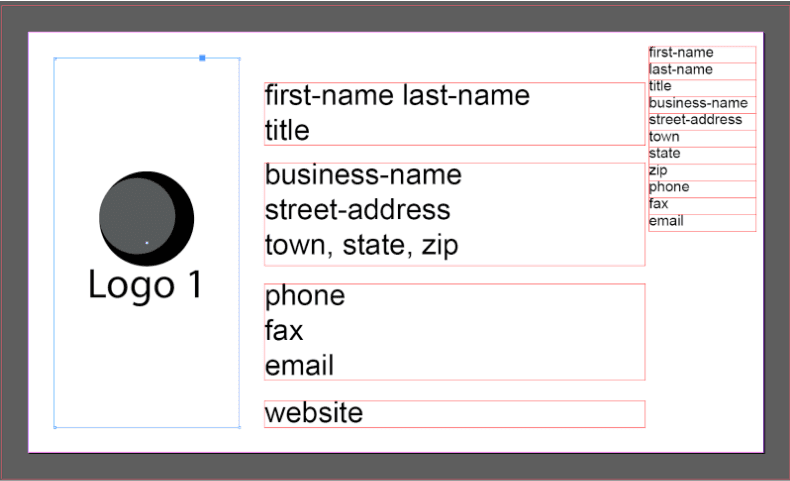
In the Adobe InDesign test template below we have three text blocks tagged text-block-1, text-block-2, and text-block-3, plus one logo placeholder tagged logo. Later in the process we assign Mustache logic inside these text blocks so that separate variable text items can flow together.
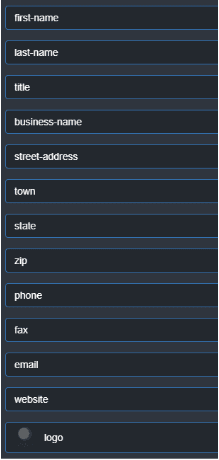
The variables we work with are added to the template as first-name, last-name, title, business-name, street-address, town, state, zip, phone, fax, email, and website (shown in the upper right). These variables are removed from the template view once Mustache logic is added and linked together. Each unique variable is made available in PrintNow's simple mode as a form field.
Keep the variables within the available space on the template using a small font size. You can download the test files used in this example (Simple Mode Demo.zip) to follow along.
Using Mustache to Link Form Variables
The form variables appear on the front end when customers interact with the online template.
-
Add mustache logic. In each text block -- for example the one tagged
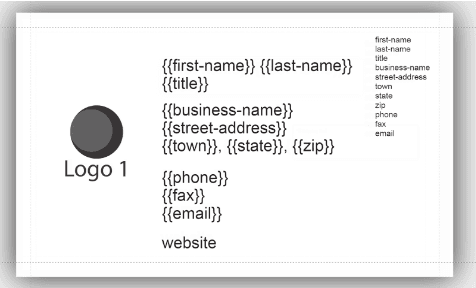
text-block-1-- add mustache logic by wrapping tag names in double curly braces, e.g.{{first-name}} {{last-name}} {{title}}. The actual tag variables are shown in the upper right and referenced by their tag names. If you have a single-line item likewebsite, you don't need mustache code and can work with the tag variable directly.Before adding mustache logic, add guidelines in PrintNow around your text item so you can reposition the text placeholder box. You may have more logic text than will become actual text entry, so you may need to adjust the outer positioning.
-
Link mustache logic. After the mustache logic is added, link the form variables to it. Select your block text (such as
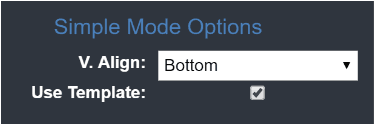
text-block-1) and open the Admin item view for that layer. Choose whether the text flows from the Top, Center, or Bottom, then enable Use Template. The tag variables contained in that block are hidden from view -- this is expected. To undo the change later, turn Use Template off and the text reappears.
Using Mustache for Advanced Formatting
The table below shows a few examples of Mustache code combined with text formatting.
A leading # opens a section that only renders when the variable has a value, and a matching / closes it. If Phone or Fax is empty, the line gap closes automatically because the closing tag ({{/phone}}, {{/fax}}) sits on the next line. You don't need to do this on the last line.
The {{.}} token is shorthand for the current section's variable -- so {{#phone}}{{.}}{{/phone}} could also be written as {{#phone}}{{phone}}{{/phone}}.
The format helpers fp_dash, fp_dot, and fp_pdash reformat a 10-digit number into dashed (444-444-4444), dotted (444.444.4444), and parenthesized ((444)-444-4444) styles respectively.
| Template | Form Input | Output |
|---|---|---|
{{first-name}} {{last-name}} | First Name = John Last Name = Doe Title = Manager | John Doe Manager |
{{#phone}}{{.}} | Phone = 444-444-4444 Fax = 555-555-5555 Email = jdoe@company.com | 444-444-4444 555-555-5555 jdoe@company.com |
{{#phone}}P {{.}} | Phone = 444-444-4444 Fax = 555-555-5555 Email = jdoe@company.com | P 444-444-4444 F 555-555-5555 E jdoe@company.com |
{{#phone}}P {{#fp_dash}}{{.}}{{/fp_dash}} | Phone = 4444444444 Fax = 5555555555 Email = jdoe | P 444-444-4444 F 555-555-5555 E jdoe@company.com |
{{#phone}}P {{#fp_dot}}{{.}}{{/fp_dot}} | Phone = 4444444444 Fax = 5555555555 Email = jdoe | P 444.444.4444 F 555.555.5555 E jdoe@company.com |
{{#phone}}P {{#fp_pdash}}{{.}}{{/fp_pdash}} | Phone = 4444444444 Fax = 5555555555 Email = jdoe | P (444)-444-4444 F 555-555-5555 E jdoe@company.com |
Two text placeholders{{#phone}}P | Phone = 444-444-4444 Fax = 555-555-5555 Email = jdoe@company.com | P 444-444-4444 F 555-555-5555 E jdoe@company.com |
Two text placeholders with choice of prefix{{#phone}} {{prefix-phone}} | Phone Prefix = P Phone = 444-444-4444 Fax Prefix = F Fax = 555-555-5555 Email Prefix = E Email = jdoe@company.com | P 444-444-4444 F 555-555-5555 E jdoe@company.com |
Associations
Print Editor
| Area | Effect |
|---|---|
| Template Proxy / Use Template | The Use Template toggle in Admin Mode turns a text item into a mustache template. The item's content is rendered from {{tagName}} placeholders populated by the linked form variables, and the source variables are hidden from the customer. |
| Tag Names | Mustache references resolve against the tag names assigned to items in Admin Mode. The tag name on a variable item must match the name used inside the double curly braces. |
| Vertical Alignment | The Top / Center / Bottom alignment chosen on the block controls how the rendered text flows within its bounding box. This setting applies in simple mode. |
| Multi-line Values | Multi-line variable values are automatically split into indexed variables ({{tagName__0}}, {{tagName__1}}, etc.) so each line can be referenced individually. |
Related Pages
- Simple Editor -- the editor mode where mustache templates render as customers fill in form fields
- Admin Mode -- enable Use Template and set the tag names that mustache references resolve against
- Adobe IDML Templates -- import the tagged InDesign template that mustache logic is applied to
- Rules Engine -- add conditional logic that fires alongside mustache rendering as customers edit
- Autofill Profiles -- pre-populate the form variables that mustache templates combine
- Product Setup -- select simple mode and assign assets for products that use mustache templates